Cockpit
One window over every Claude Code and Codex session on your Mac — what each one is about, which ones are waiting on you, and a place to answer them all without opening a single terminal.
What Cockpit is
When you work with coding agents you end up with a dozen conversations in a dozen terminal tabs. Several have finished, one is mid-task, two are waiting for you to answer something, and you cannot tell which is which without reading them. Cockpit is the screen that tells you.
It does not run your agents for you and it does not replace them. Claude Code and Codex already write every conversation to disk as it happens. Cockpit reads those files, works out what each session is about and what state it is in, and draws them as cards you can open, answer, interrupt and file. Your existing sessions appear the first time you launch it — there is nothing to import and nothing to set up.
Everything stays on your Mac. Cockpit is a local app reading local files, with no account and no server. See what leaves your Mac for the exact list.
Installing it
- Open
Cockpit_0.1.0_aarch64.dmg. - Drag Cockpit into your Applications folder.
- The first launch only: right-click Cockpit in Applications and choose Open, then confirm. Double-clicking it the first time will be refused.
This build is not notarised by Apple, so macOS blocks a plain double-click on a downloaded app it has never seen. Right-click → Open is the standard way to tell macOS you meant it. You only do it once; afterwards Cockpit opens like any other app.
What you need
- A Mac with Apple Silicon (M1 or later) running macOS 13 or newer.
- Claude Code, Codex, or both — whichever you already use. Cockpit finds them itself. If neither is installed it still opens; there is simply nothing to show yet.
- Nothing else. No account, no sign-in, no API key to get started (a key adds summaries and automatic filing — see Settings).
The first launch
Cockpit opens and starts reading. It looks in the places the CLIs keep their transcripts — ~/.claude/projects and ~/.codex/sessions — and cards appear as it goes. A large history takes a few seconds; a very large one (a gigabyte of transcripts is not unusual) takes under a minute. You can use the board while it fills in.
If nothing appears, open Settings (the cog, far right of the top bar) and read the Doctor section. It says in plain words what is installed, what is signed in, which folders it looked at and whether it could read them — which is almost always the whole answer.
The board
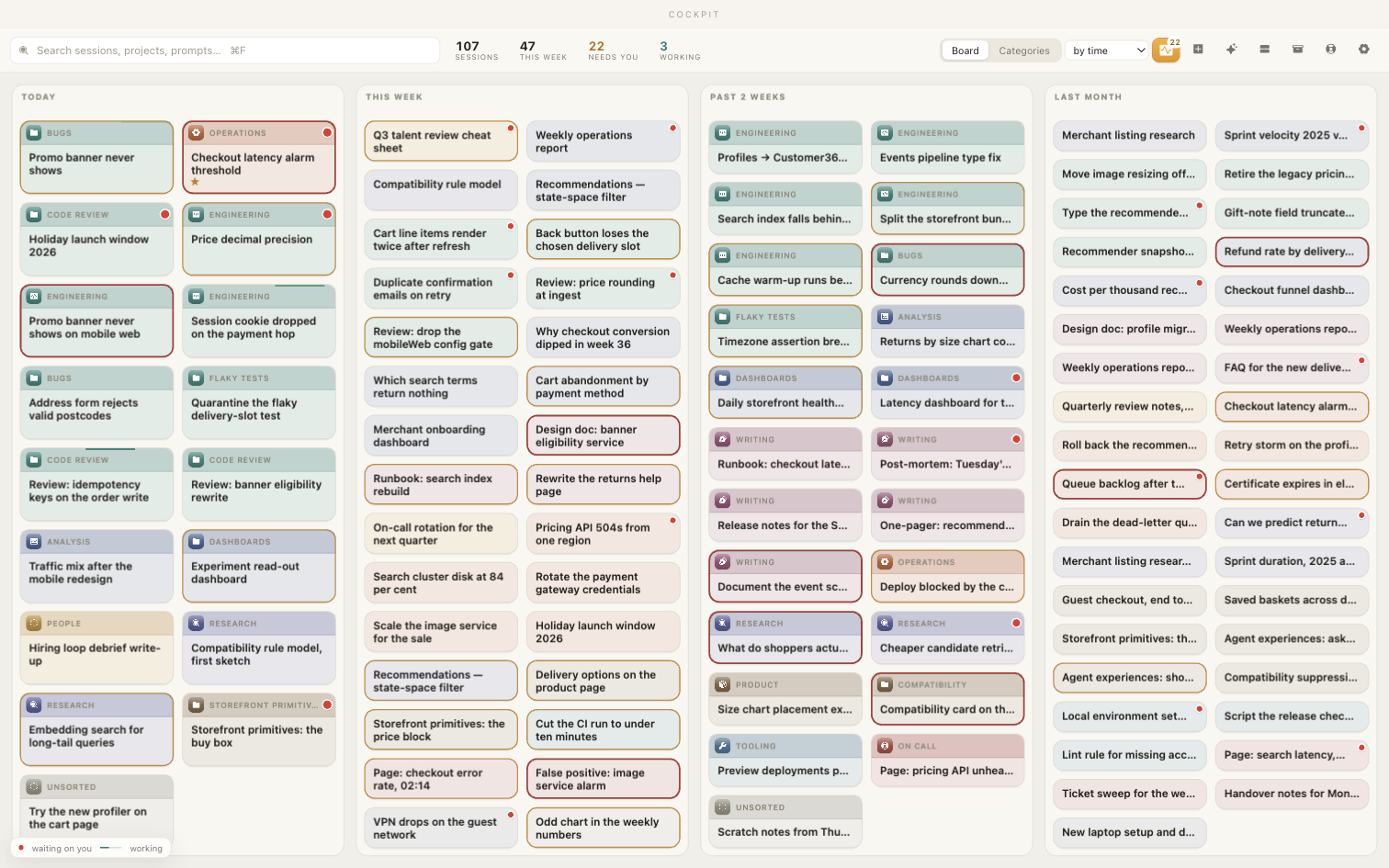
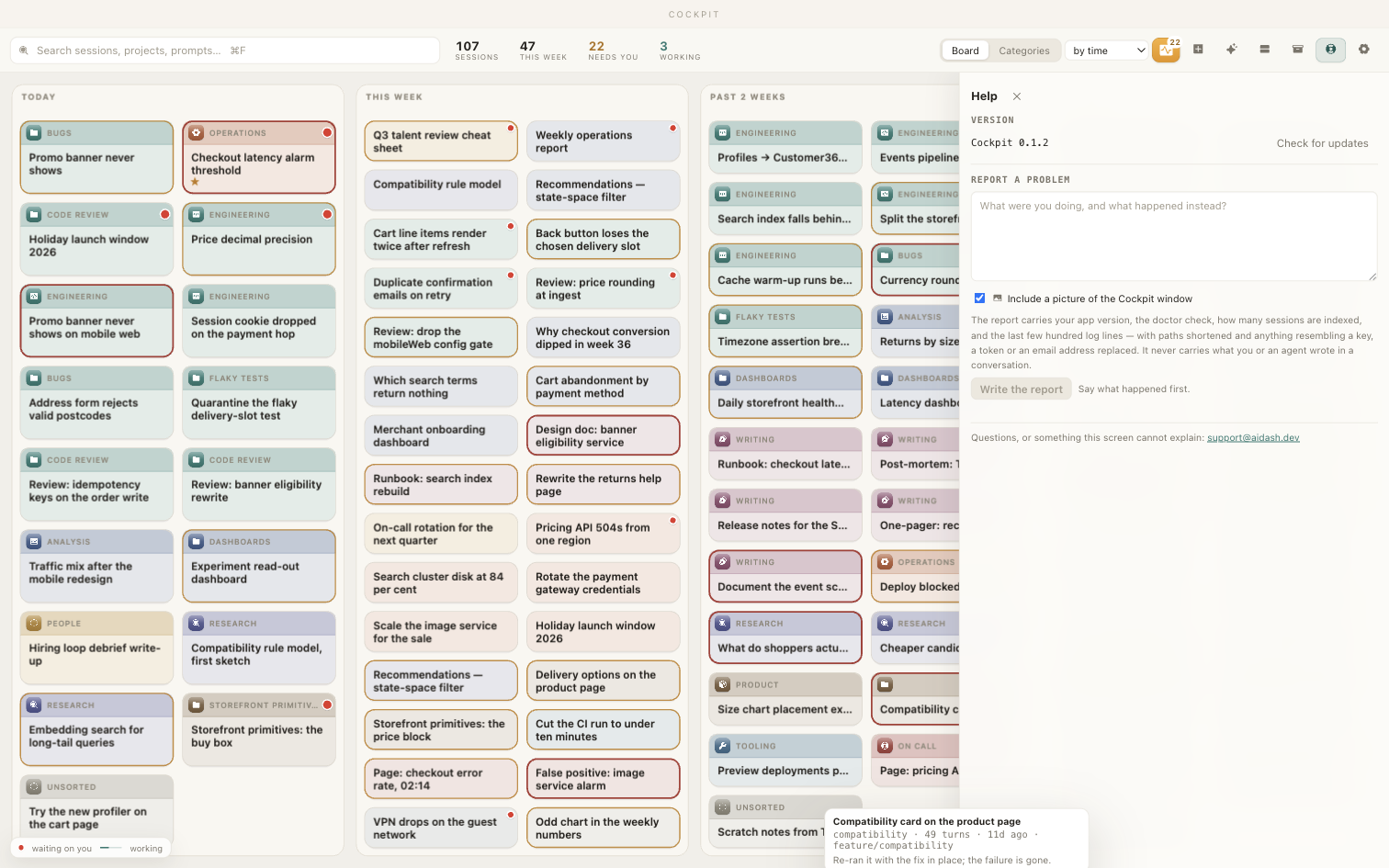
The board is the home screen: one card per session, in columns by when it was last touched — today, this week, the past two weeks, last month.
Reading a card
- A red badge in the corner means that session is waiting for you — a permission request or a question. It is the same idea as a notification dot on an iPhone icon, and it is the one thing on the board worth scanning for.
- The icon, top left is the category. Click it to re-file the session from a menu.
- A faded card is done. A card with a moving line across the top has an agent working in it right now.
- The title is what the session is about, not the folder it runs in.
The top bar
| Control | What it does |
|---|---|
| Search ⌘F | Filters the board by title, project, or anything said in a session. |
| Counts | Sessions, this week, needs you, working — click-free status for the whole machine. |
| Board / Categories | Switches between the time layout and the filing view. |
| Attention | The badge-count button: everything waiting on you, in one table. |
| + | Starts a new session. |
| Archive | Sessions you have put away, with a Restore on each. |
| Cog | Settings, and the doctor. |
Moving cards
Drag a card anywhere and it stays there. Drag one onto a category in the Categories view to file it. Hover a card for its own menu — Archive to put it away, or open a terminal in its directory.
Attention
The point of the app, on one screen. Attention lists only the sessions that need something from you, each with what it was doing, where it got to, and a box to reply in. A round of answers that would have been a dozen terminal tabs is a dozen lines here.
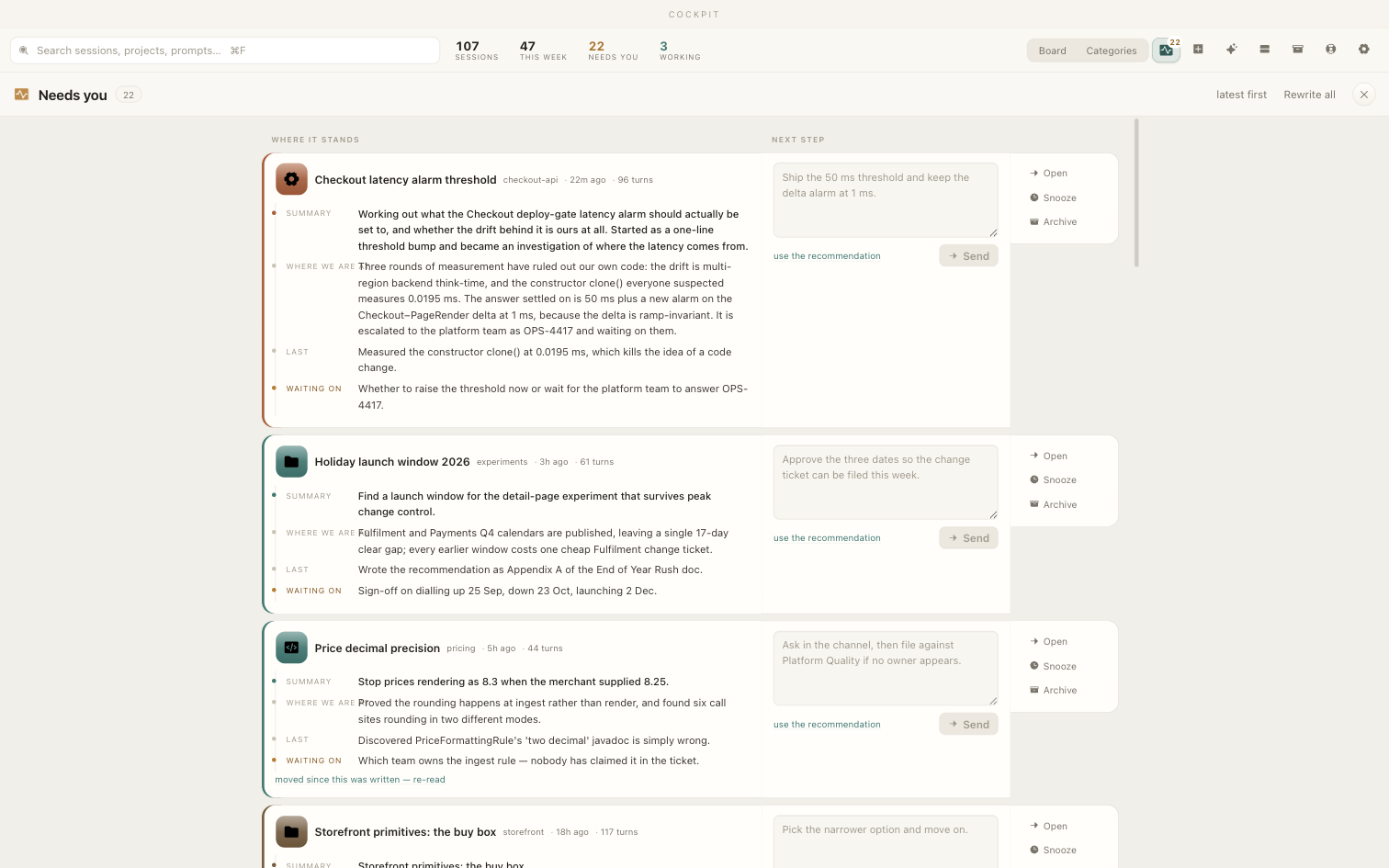
- Type and send to answer without opening anything. ↵ sends.
- Snooze hides a row for a while, for the ones you will deal with later.
- Archive takes it off the board entirely.
- Refresh writes the short "where it got to" prose for rows that have none. That is the one thing here that needs a model — see keys.
Opening a session
Click a card. It opens full-screen, over the board.
What is on the screen
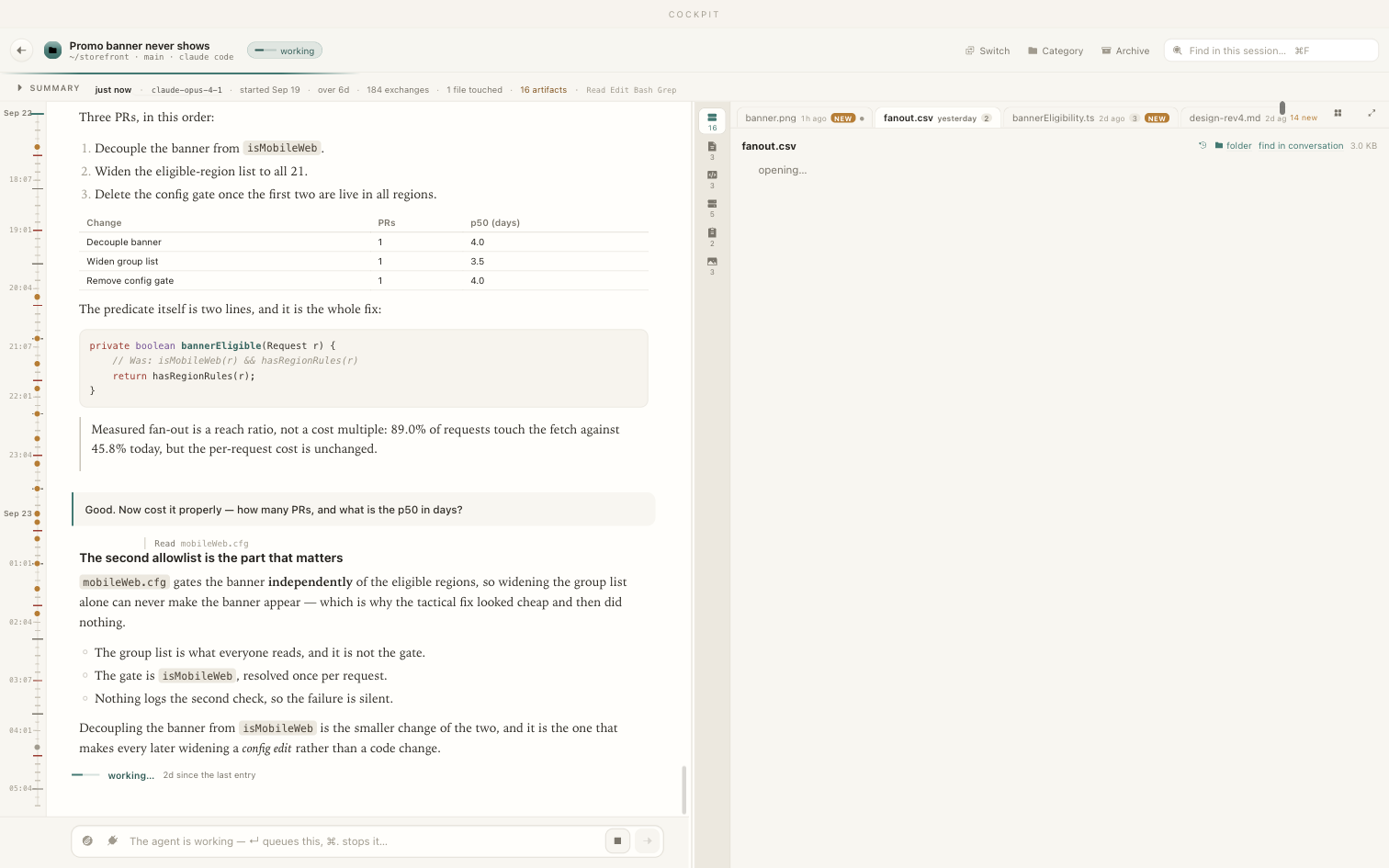
- Summary and Where we are at, at the top. The first is what this session is about; the second is the state it is in right now. Click the fold to open or close them.
- The conversation, in the middle, formatted to be read rather than scrolled past — headings, lists, tables and code, with what the agent did collapsed down to one line each so the actual reasoning is visible.
- The files the agent wrote or changed, as tabs. Click one to read it. Each has a timeline of its own versions: step through it with the dots, or with ← →, and see what changed between two of them.
- The rail down the left is the session's own history in time, hours marked, so "what happened this morning" is one click rather than a scroll.
- Find in this session with ⌘F.
Escape closes it and puts you back on the board, in the same place you left.
Answering
The box across the bottom of an open session types into the real session — the same conversation, the same transcript on disk. There is no separate Cockpit chat.
- ↵ sends. ⇧↵ makes a new line.
- Images: ⌘V anywhere in the conversation column pastes a screenshot in, or drop a file on it, or use the paperclip. They are saved next to the message and the agent is told to go and read them.
- While the agent is working: what you type is queued and sent when the turn ends — it will not interrupt by accident.
- To interrupt on purpose: ⌘. anywhere in the session, or the stop button on the typing line. The agent stops what it is doing; the conversation stays open and you can carry straight on.
A thin line moves across the top of the session while an agent is working, and the conversation says what it is doing — working…, or Compacting when the CLI is shortening its own history. A session with nothing moving is a session waiting for you.
Permissions & questions
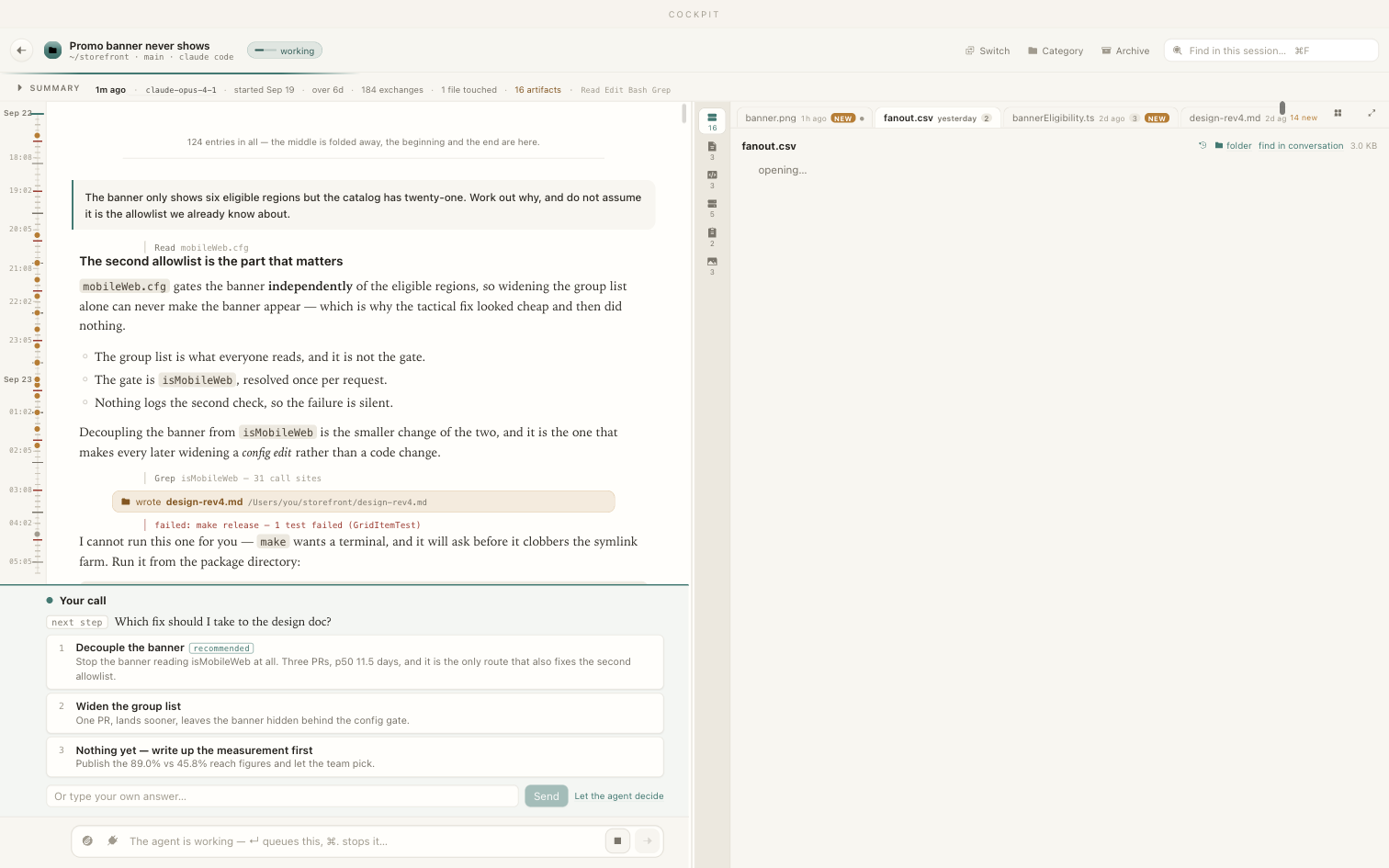
Both CLIs stop and ask sometimes. Cockpit puts the request in the session and in Attention, and sends your answer back — so a waiting agent is visible instead of being buried in a tab you are not looking at.
Two kinds of ask
- A permission request — the agent wants to run something or write somewhere. You see exactly what it proposed, and Allow or Deny; denying lets you say why, which the agent reads.
- A question — the agent is asking you to choose between approaches. One of the options is usually marked as its recommendation. You can pick one, pick several where that makes sense, or ignore the options and type your own answer.
When you allow something, Cockpit sends back the request's own identifier and your verdict — never a re-typed version of the command. The thing that gets permission is exactly the thing you were shown.
Running a command
Agents suggest shell commands constantly, and copying them out of a transcript into the right directory is the small chore that makes you leave the app. So Cockpit spots them: hover a command in a session and it offers to run it. Accept, and a terminal opens in that session's own working directory with the command already typed.
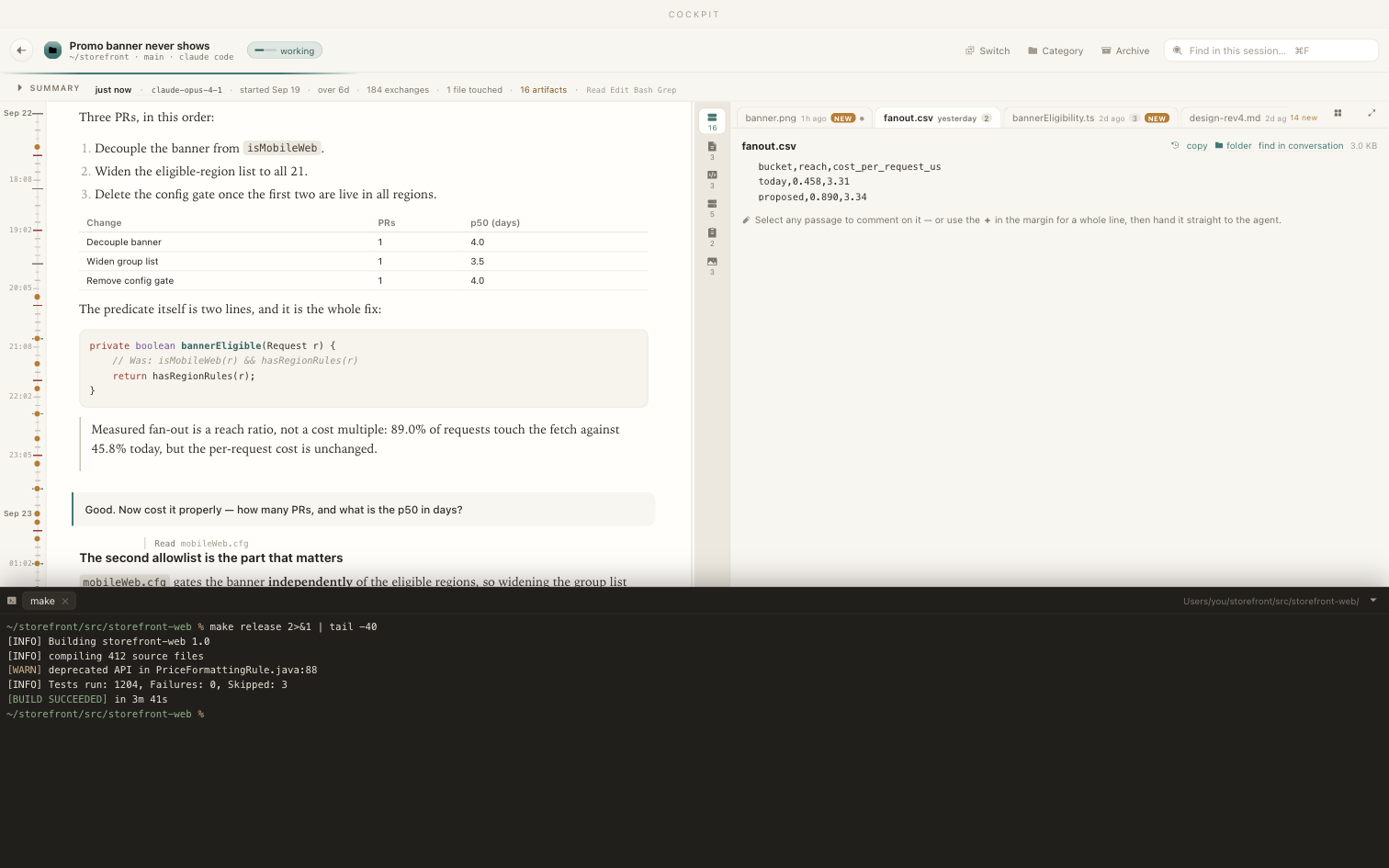
Nothing runs until you click. The command is typed for you and left there; you press ↵.
Starting a session
The + button in the top bar starts a real session on disk.
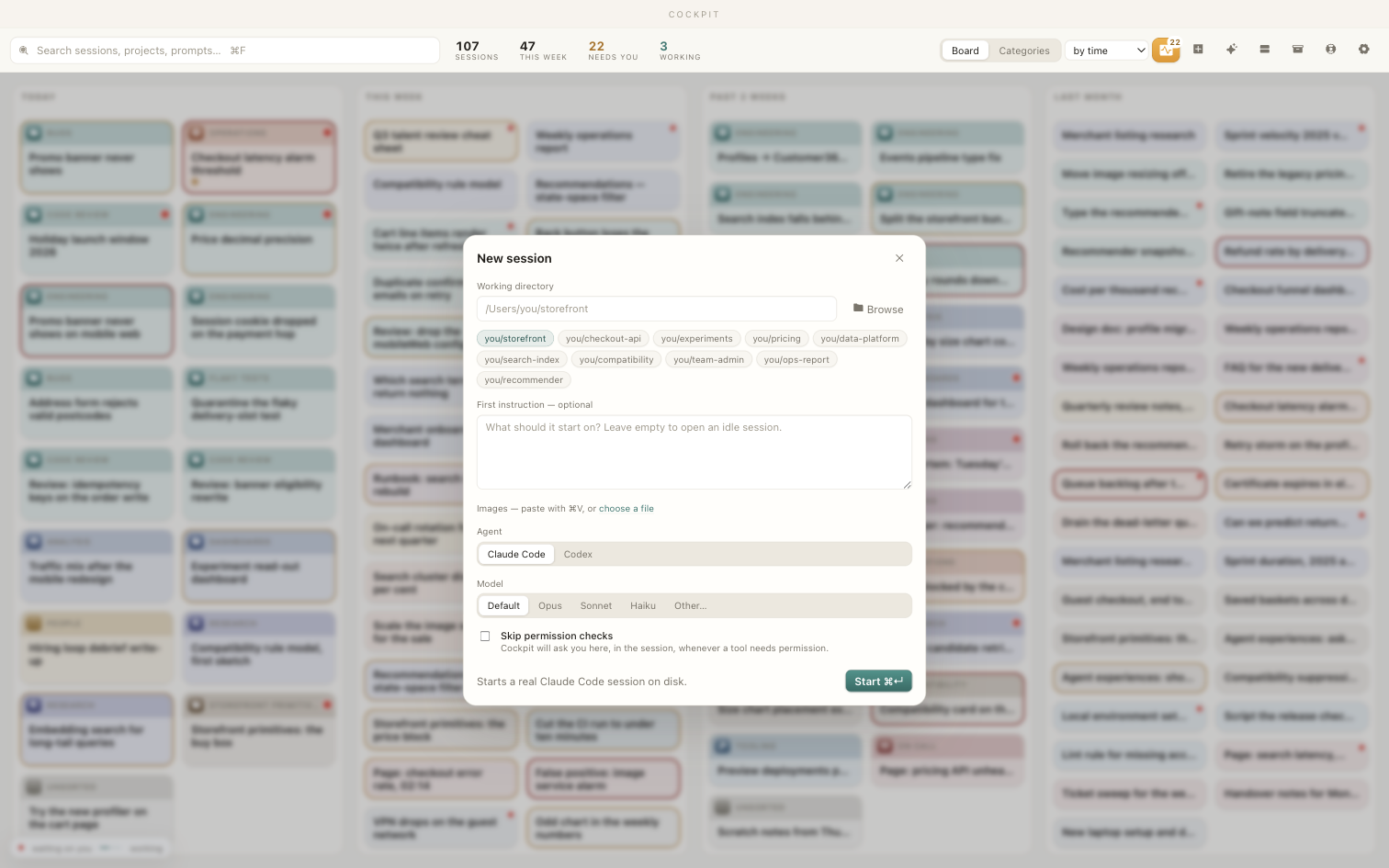
- Working directory. Type it, browse for it, or click one of the projects you have used recently.
- First instruction, optional. Leave it empty to open an idle session and start talking to it on the board.
- Images, if you have them: ⌘V or choose a file.
- Agent: Claude Code or Codex.
- ⌘↵, or Start.
The card appears on the board within a few seconds. What you have started is an ordinary session in the agent's own project folder — you can pick it up in your terminal later, or never open Cockpit again, and it is still there.
The checkbox at the bottom waives the permission prompts for that session — Claude Code
runs with --dangerously-skip-permissions, Codex with
--dangerously-bypass-approvals-and-sandbox, which also loses it its
sandbox. Nothing will be put to you, including writes and shell commands. The sheet
names the exact flag when you tick it, and it is never remembered: every new session
starts with it off.
Categories
Cockpit groups sessions by subject, not by folder — six directories can be one piece of work and one directory can be five. Categories are that grouping, and they are yours to change.
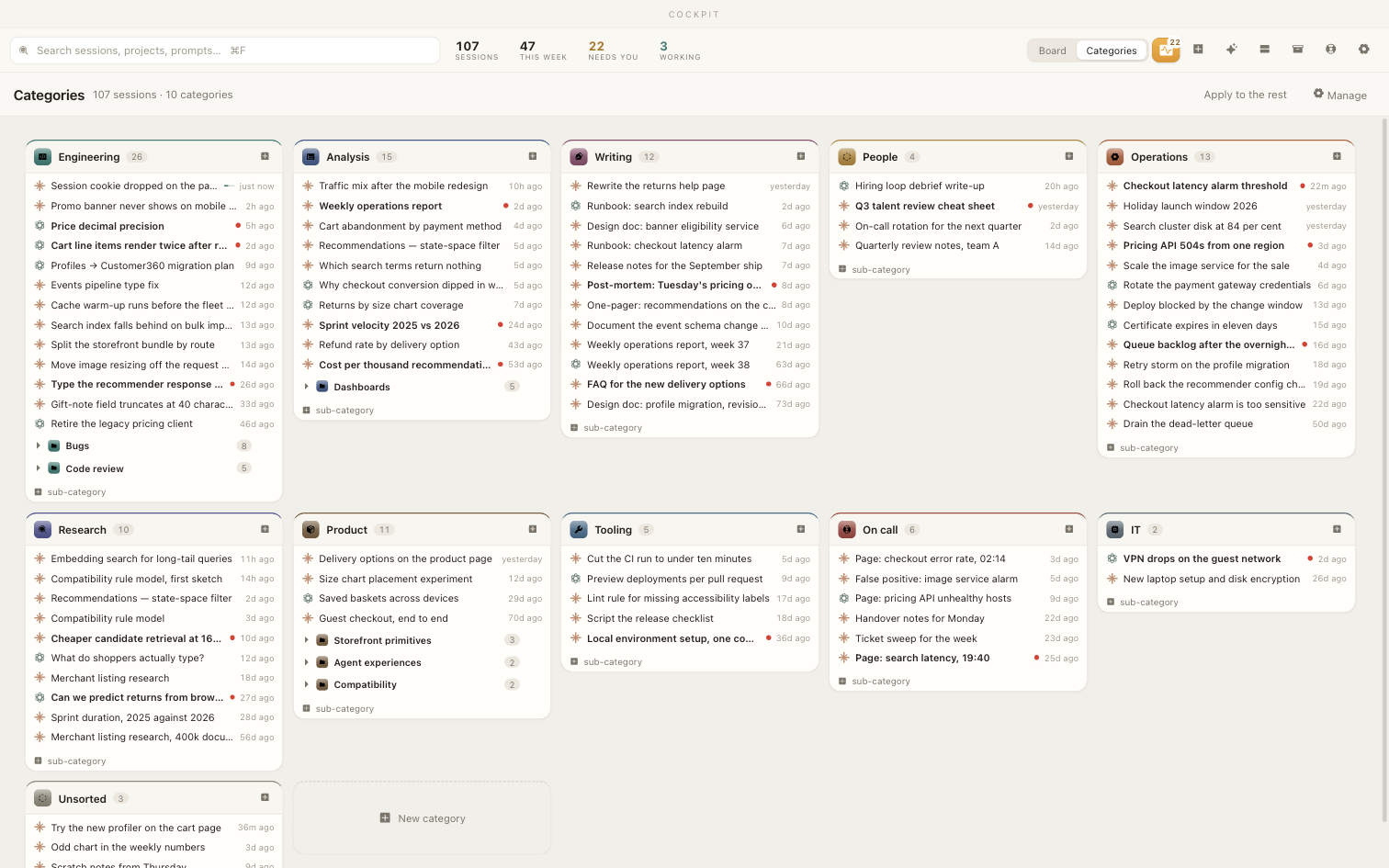
- Drag a card onto a category to file it there.
- Click a card's icon, anywhere in the app, to re-file it from a short menu — usually faster than dragging.
- Click a category heading to rename it, recolour it, pick a different icon, or upload your own.
- Sub-categories for the ones that need a second level.
With an API key configured, new sessions are filed automatically as they are found, and anything it cannot place waits under Unclassified. A category you set by hand is never overwritten by the classifier.
Settings & keys
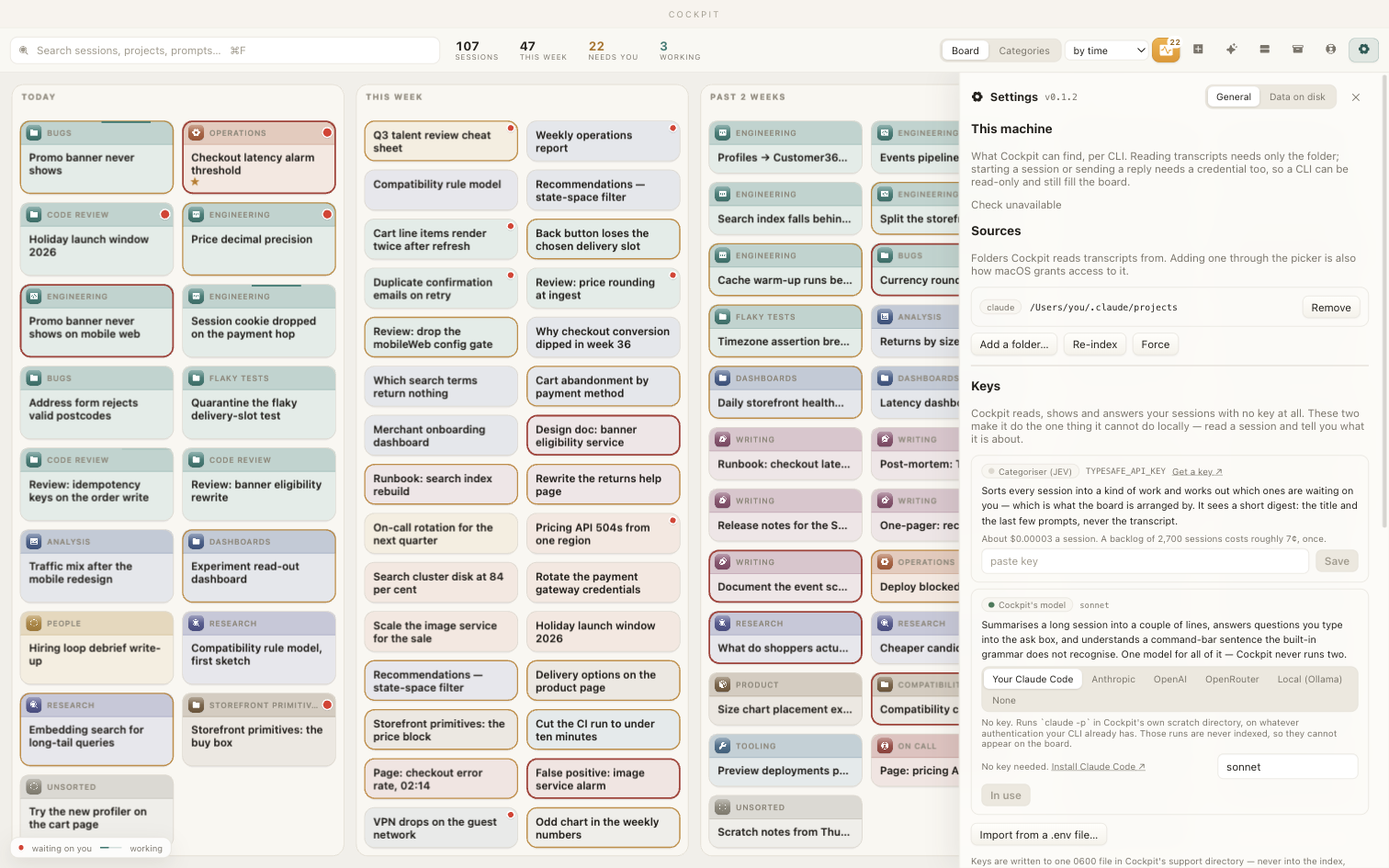
Where it looks
The transcript folders Cockpit reads. The usual ones are found for you; add another if you keep sessions somewhere unusual. Removing a root only stops it being read — it deletes nothing.
The model
Summaries, the "where we are at" prose and automatic filing need a model. There are two ways to have one:
- The Claude Code CLI you already have. If it is installed and signed in, Cockpit can use it and you need no key at all. This is the default.
- An API key, if you would rather, or if you use a different provider.
Without either, nothing breaks: sessions are still found, read, opened and answered. They are simply not summarised or filed for you.
Keys
A key you paste in is written to a private file (chmod 600) beside Cockpit's
index, never into the database and never into a log. The panel shows you which keys exist
by name — it cannot show you a key's value, because it never reads one back out.
The doctor
Run it when something looks wrong. It reports both CLIs — installed, version, signed in — every folder it looks at and whether it is readable, and, if you ask it to, spends one cheap model call proving that summarising actually works. It is the first thing to read before reporting a problem, and it is included in a report automatically.
Updates & problems
Updating
The panel names the build you are running. Check for updates asks aidash.dev whether there is a newer one — that is the only moment Cockpit talks to a server, and only because you pressed it. If there is, you get the version, the date and the release notes, and Install and restart does the rest.
Installing replaces the app and restarts it. Sessions keep their whole history, but any terminal Cockpit is holding closes — including one with an agent mid-turn. Offline, or if the check cannot answer, there is a link to download the new build by hand.
Reporting a problem
Say what you were doing and what happened instead, and press Write the report. Cockpit gathers the diagnostics into a folder and a zip on your disk and sends nothing. It lists every file it made and what is in each one, then offers you a pre-filled email to support@aidash.dev with the zip to attach yourself.
A report carries:
- What you typed, and the version you are running.
- The doctor check, and counts — how many sessions, how many roots. No titles.
- The last few hundred log lines, with paths shortened and anything resembling a key, a token or an email address replaced.
- A picture of the Cockpit window — only if you leave that box ticked.
It never carries what you or an agent wrote in a conversation. Do read the files before you send them; that is why they are listed.
Keyboard
| Key | Where | What |
|---|---|---|
| ⌘F | Board | Search every session |
| ⌘F | Open session | Find in this session |
| ⌘K or / | Anywhere | The command bar |
| ⌘⇧K | Any app | Bring Cockpit forward, into the command bar |
| ↵ | A reply box | Send |
| ⇧↵ | A reply box | New line |
| ⌘. | Open session | Interrupt the agent, keep the conversation |
| ⌘V | Open session, new session | Paste an image in |
| ⌘↵ | New session | Start it |
| ← → | A file's timeline | Step through versions |
| Escape | Anywhere | Close what is open |
What leaves your Mac
Cockpit reads transcripts of everything you have asked an agent, in folders named after your projects and often your employer. So this list is short on purpose, and it is the whole list:
| When | What goes out |
|---|---|
| Summarising or filing a session | Part of that session, to whichever model you configured — the CLI you already use, or your own API key. Turn it off by configuring no model. |
| You press Check for updates | A request to aidash.dev asking what the newest version is. Nothing about you. |
| You send a problem report | Only the files you were shown, only attached by you, only in an email you send yourself. |
There is no telemetry, no analytics and no account. Nothing is uploaded in the background.
What it writes
Its own index, logs, key file and attachments, all under ~/Library/Application Support/dev.rollatgr.cockpit. Cockpit never writes into a folder another tool owns, so your transcripts are only ever read. Starting a session is the one exception, and it is the CLI itself that writes the transcript, in its own place, exactly as if you had typed the command.
If something is wrong
| What you see | What to do |
|---|---|
| macOS refuses to open it | Right-click the app in Applications → Open → confirm. First launch only. |
| No sessions at all | Settings → Doctor. It says whether a CLI is installed, where it looked, and whether it could read it. Add a root if you keep transcripts somewhere unusual. |
| Cards, but no summaries | Expected without a model. Settings → the model section: either sign in to the Claude Code CLI or add an API key. |
| Everything is Unclassified | Same cause — filing needs a model. File by hand meanwhile: it always takes priority. |
| A new session is not on the board | Give it a few seconds. Cockpit watches for changes and also sweeps every 90 seconds, so it arrives without a relaunch. |
| A card says it is working and nothing is happening | Open it and press ⌘.. If Cockpit is not the one running that session it will say so — that turn belongs to your terminal. |
| A reply does not arrive | Open the session: a permission request may be waiting above your message. Answer it and the queued reply goes through. |
| Something else | Help → Report a problem. Read the files, then mail them to support@aidash.dev. |